The SmartCAM Workspace
All SmartCAM applications feature a full-screen, graphic user interface. Areas within the SmartCAM application workspace have been named according to their function. There will be references to these areas throughout all SmartCAM documentation.
The following image shows the SmartCAM application and labels some of the commonly referenced application areas.
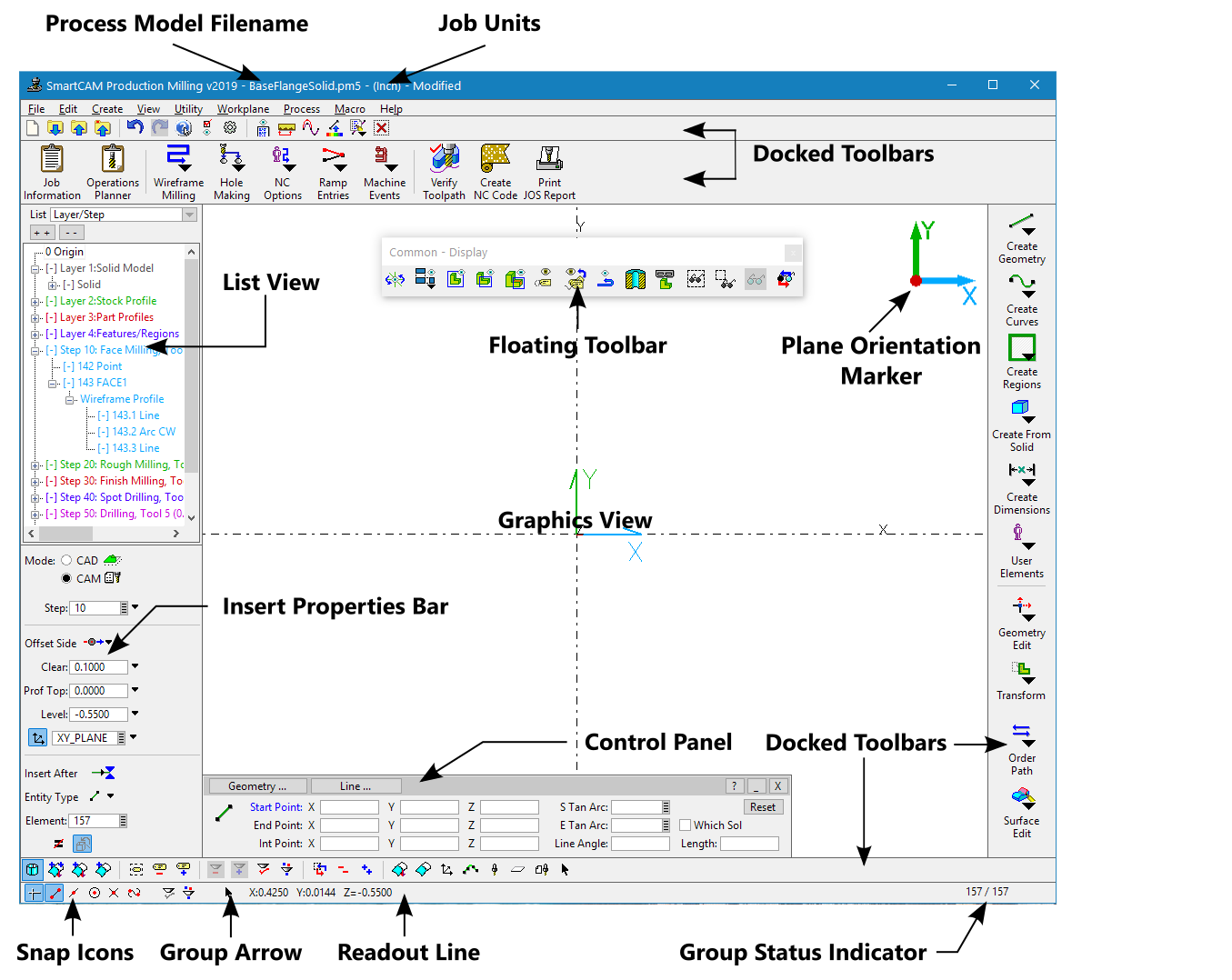
Many of the items within the SmartCAM applications can be configured to your preference. You can change which side the list view and control panels appear on, or undock and use the list view as a floating window. You can undock or change the location of the toolbar. You can change the location and appearance of the insert bar. Toolbars can be independently sized and optionally display button text.
Your current Windows Theme controls most of the User Interface colors used by SmartCAM.
Refer to the Automation/Customization section of Learning SmartCAM for more information on customizing the SmartCAM interface, color tables, menus, and other features.